
How to Control Multiple WiFi Ball Valves with a Phone and Computer?
INTRODUCTION
U.S. Solid Smart Motorized Ball Valve is a new innovative motorized ball valve that comes with a smart control function. The smart valve can be controlled by an application on mobile devices after setting up network distribution for connection to Wi-Fi. It is a revolutionary product in intelligence and convenience as compared to a traditional motorized ball valve.Today, I'll show you how to easily control your multiple WiFi motorized ball valves using your phone and computer at home or away.
1. Mobile App Control
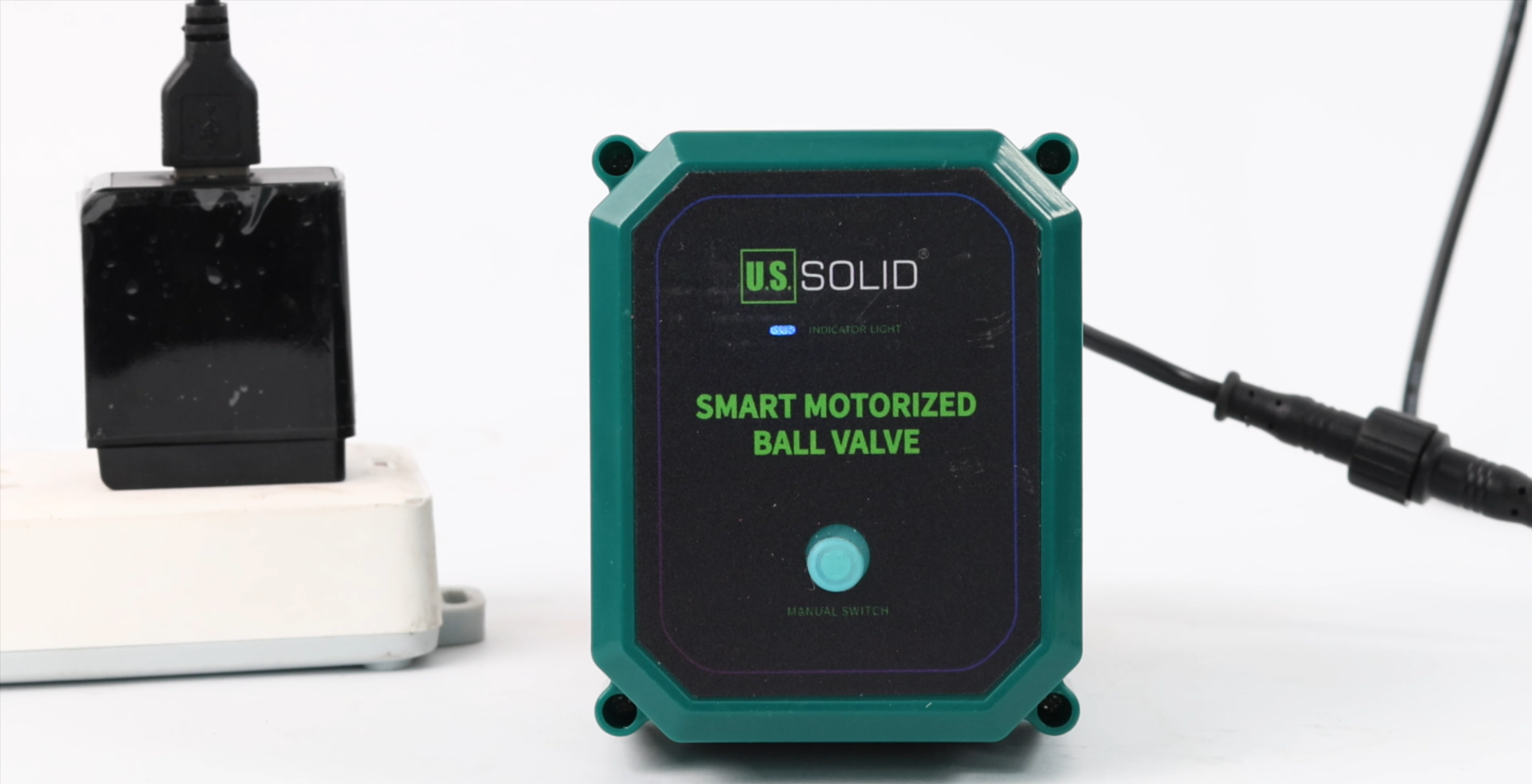
After powering on your electric ball valve, you will see a blue indicator light on top start to flash, indicating that the valve is in pairing mode.
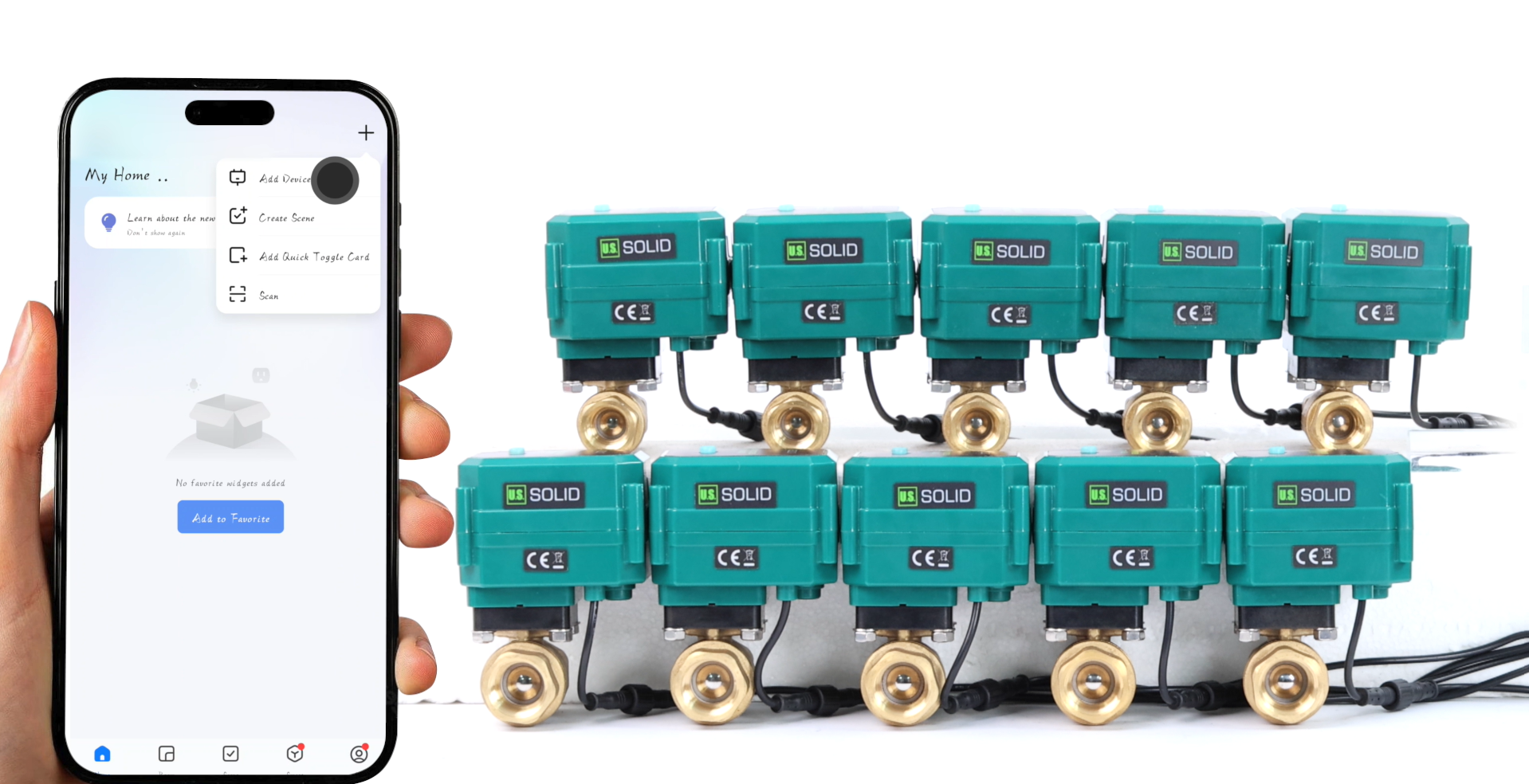
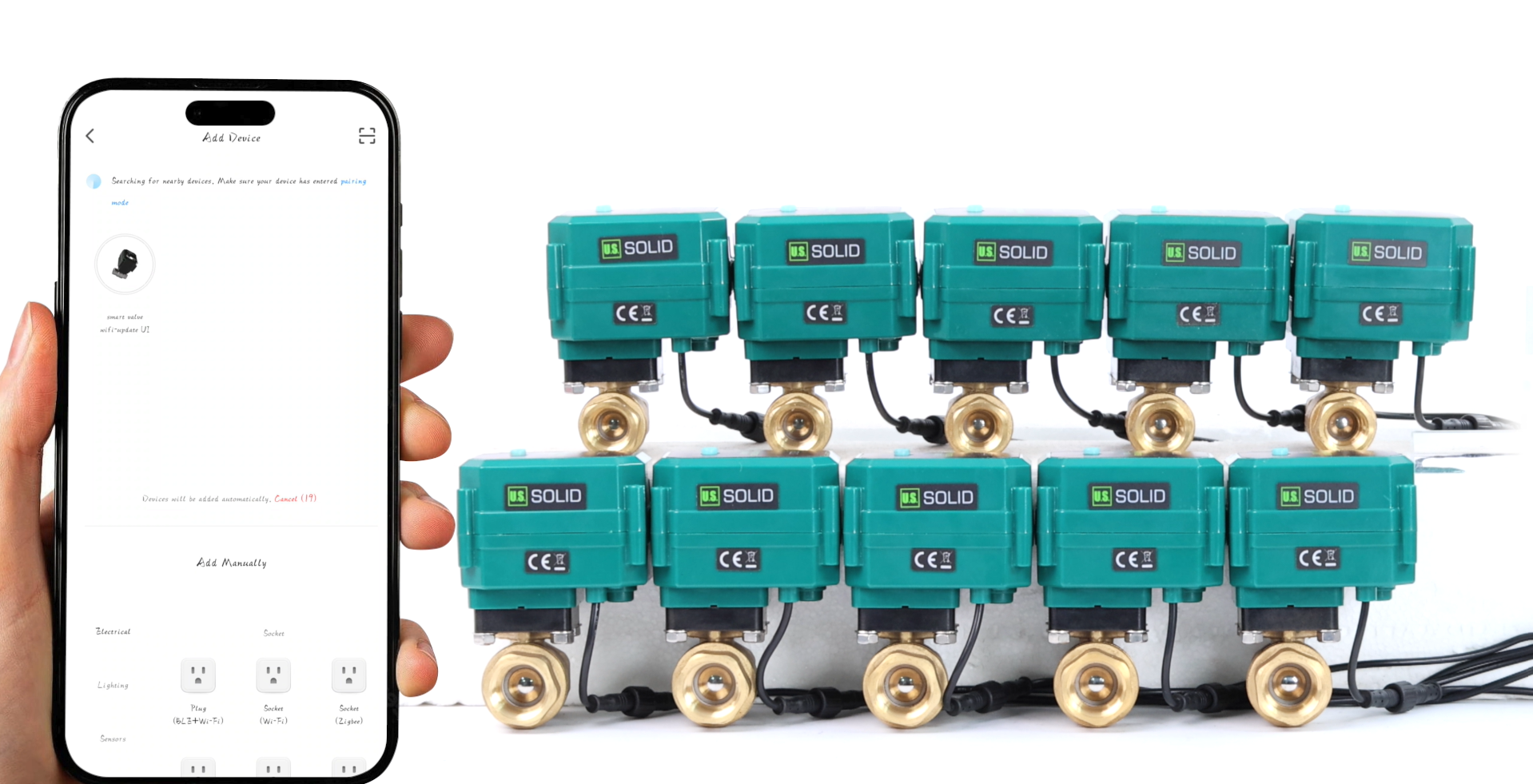
Now, please open your phone's Bluetooth and launch the Smart Life App. Tap the "Add Device" button in the top right corner, and the app will automatically search for and display the available devices. Tap the device icon that appears in the app, select your home's Wi-Fi network, and enter the password to complete the connection. This process is very fast. We've only demonstrated the connection operation for one ball valve. You can connect the remaining ball valves in the same way.
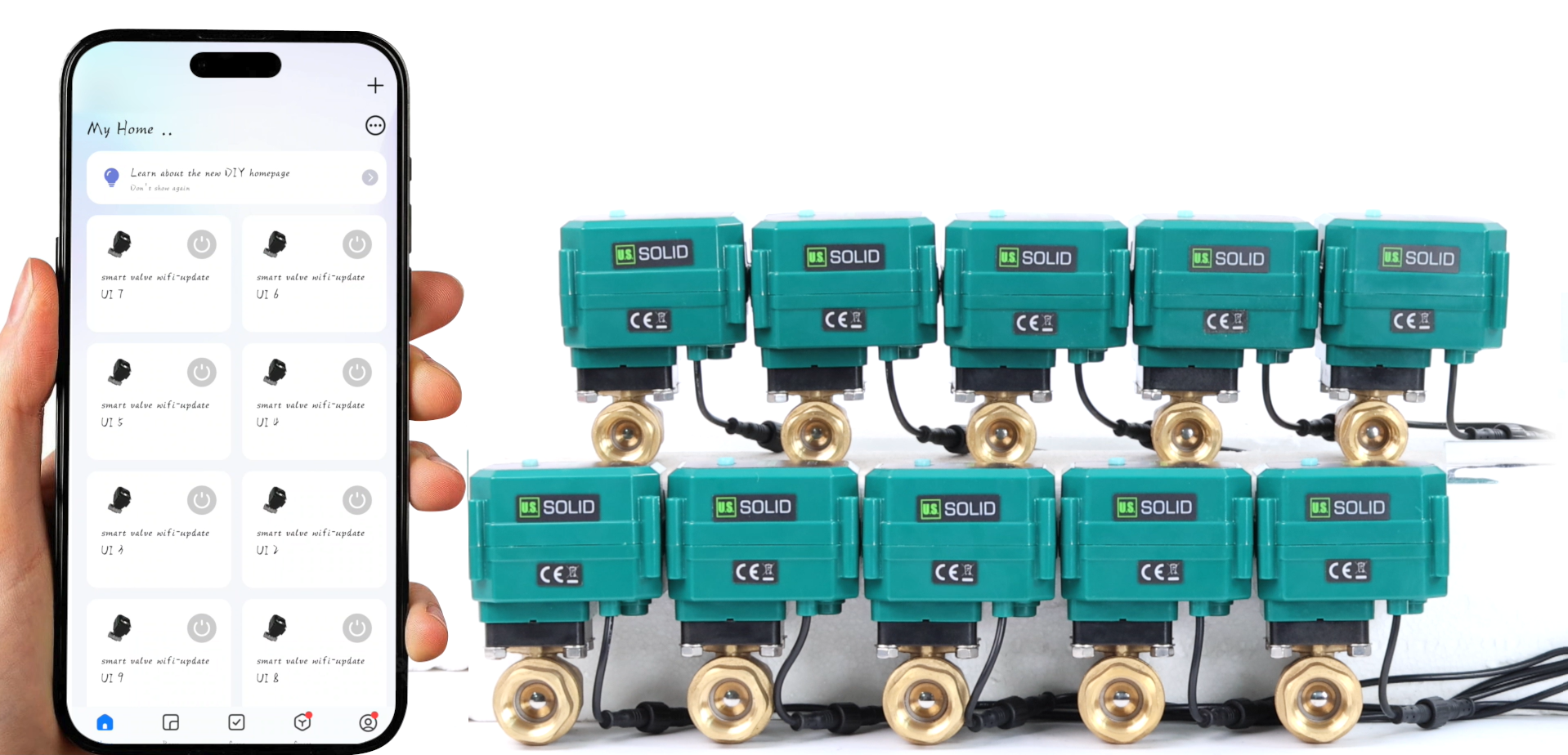
All successfully connected ball valves will be shown on the app's home page. You'll see a power icon next to each device. Just tap it to open or close the corresponding ball valve. The operation is intuitive and simple.
2. Computer Platform Control
If you need more advanced management, the computer platform is your best choice. First, log in to your Tuya Developer Platform. In "Cloud Project," find your project, and click "Devices" → "Link App Account" → "Add App Account." A QR code will then appear on the screen. Use your Smart Life App to scan this QR code, which will sync all your connected devices to the computer platform.
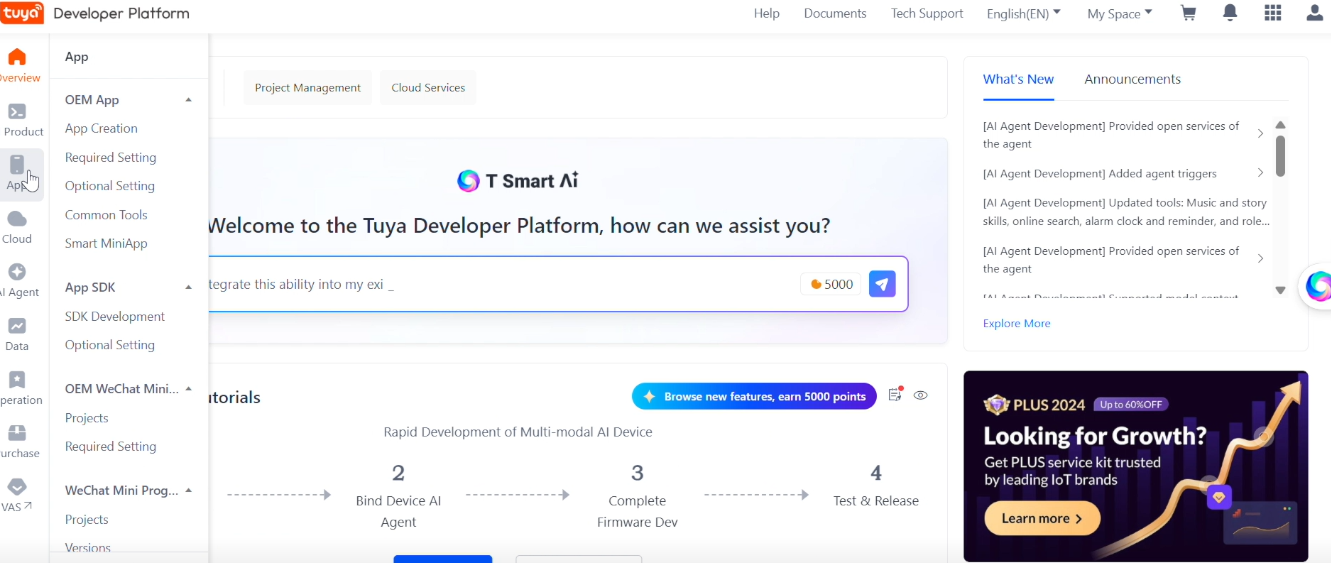
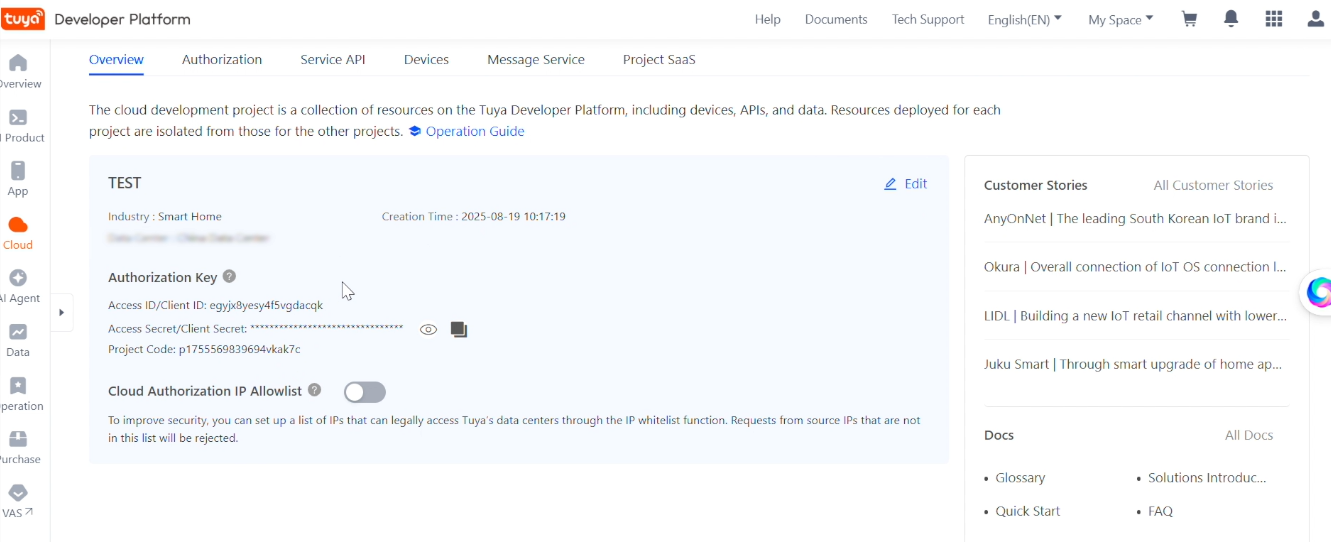
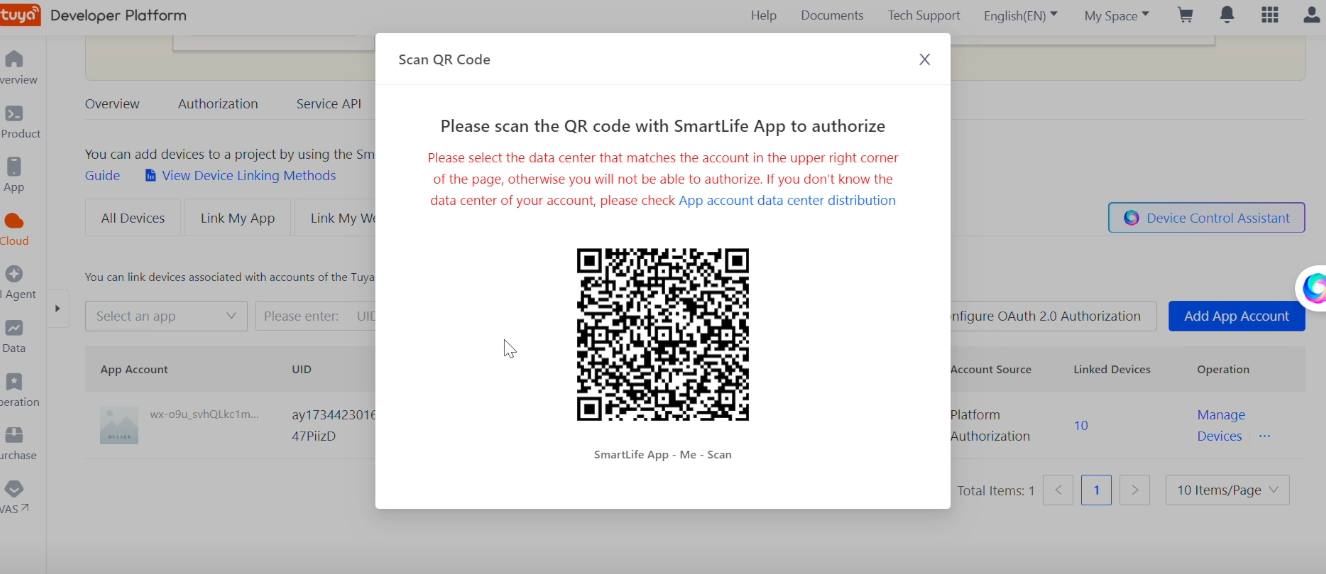
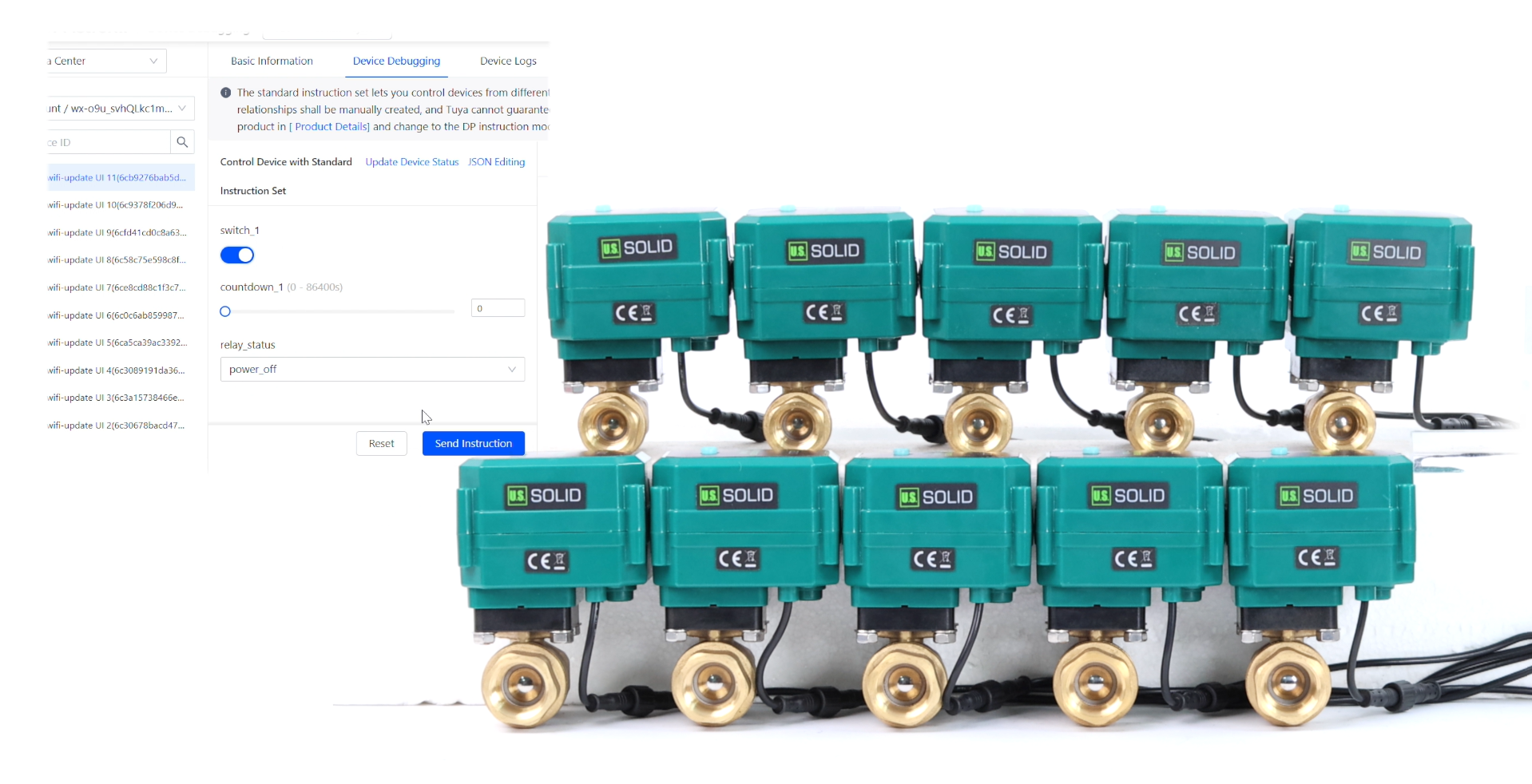
Use your Smart Life App to scan this QR code, which will sync all your connected devices to the computer platform. After the devices are synced, click "All Devices" → "Debug Device" on the computer platform.
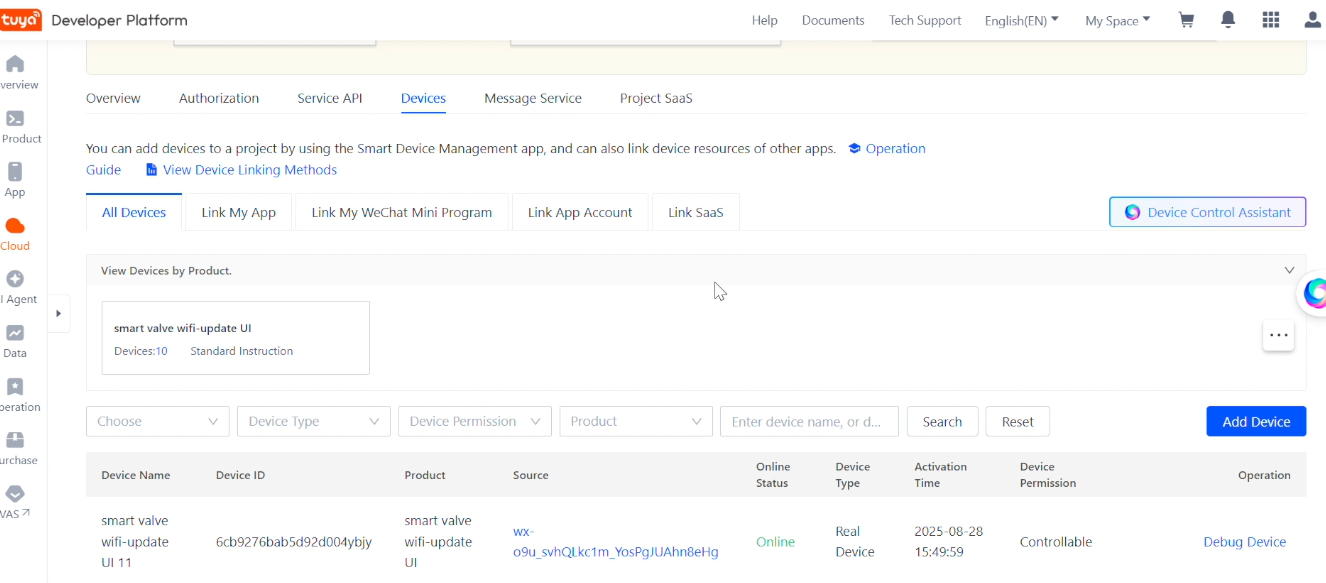
Once on the debugging page, find the ball valve you want to control, click "Device Debugging," select "Switch," and send the instruction to remotely open or close the valve. Please note: the use of this Tuya platform is not permanently free, there are time limits on its usage. Whether it's the convenience of the mobile app or the power of the computer platform, these smart tools will help you manage your home's water system more efficiently and with greater peace of mind.
For more details here